
用户

手册

user-guide

用户

手册

A simple character with a round head and orange body holding an open book, focusing on reading.
user-guide
Gray downward arrow icon.

快速了解

Gray downward arrow icon.

基础操作

Gray downward arrow icon.

插入主题元素

Gray downward arrow icon.

调整导图样式

Gray downward arrow icon.

调整全局格式

Gray downward arrow icon.

查看与显示

Gray downward arrow icon.

文件

Gray downward arrow icon.

分享

Gray downward arrow icon.

协作与同步

Gray downward arrow icon.

AI 功能

Gray downward arrow icon.

团队功能

Gray downward arrow icon.

更多模式与功能

Gray downward arrow icon.

常见问题解答

如何为团队创建多个空间?

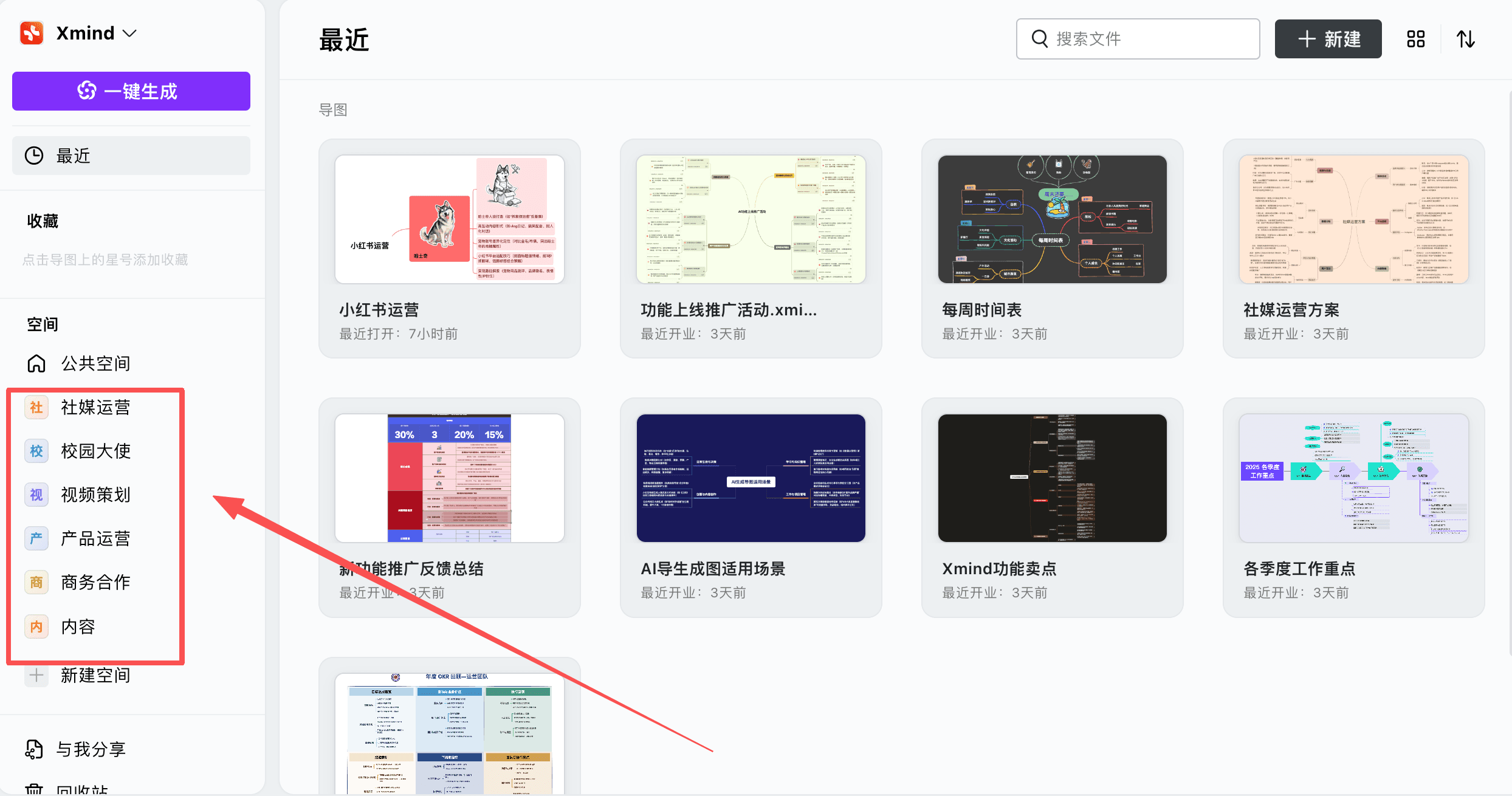
「空间」是团队中的子工作区,可按不同项目或部门独立创建

  • 公共空间默认包含团队中所有成员

  • 团队任意成员都可以按需新建多个空间,并按需选择成员

  • 不同空间相互隔离,导图文件仅该空间成员可见

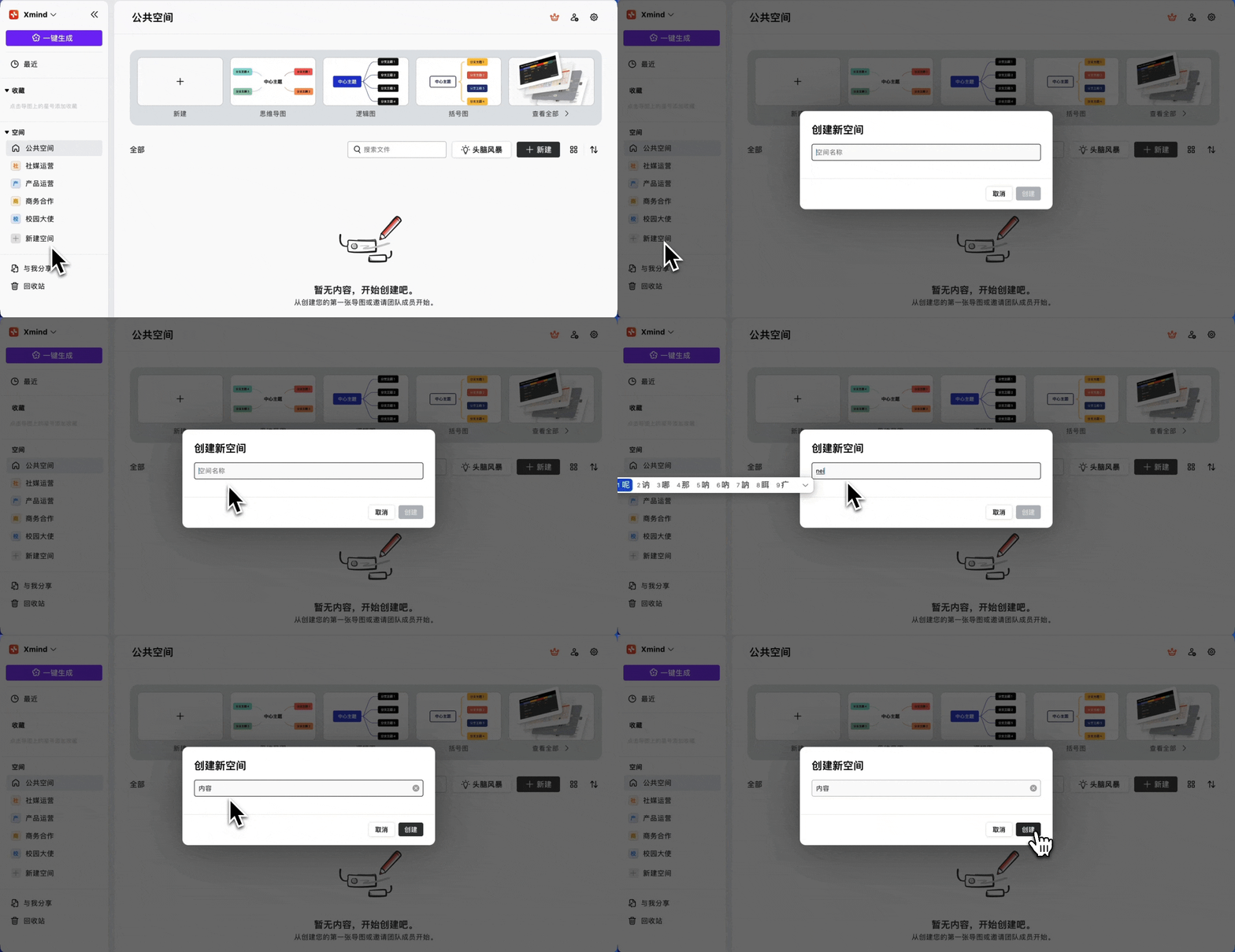
新建空间

点击团队中的「新建空间」 ➡️  输入空间名称,即可完成创建

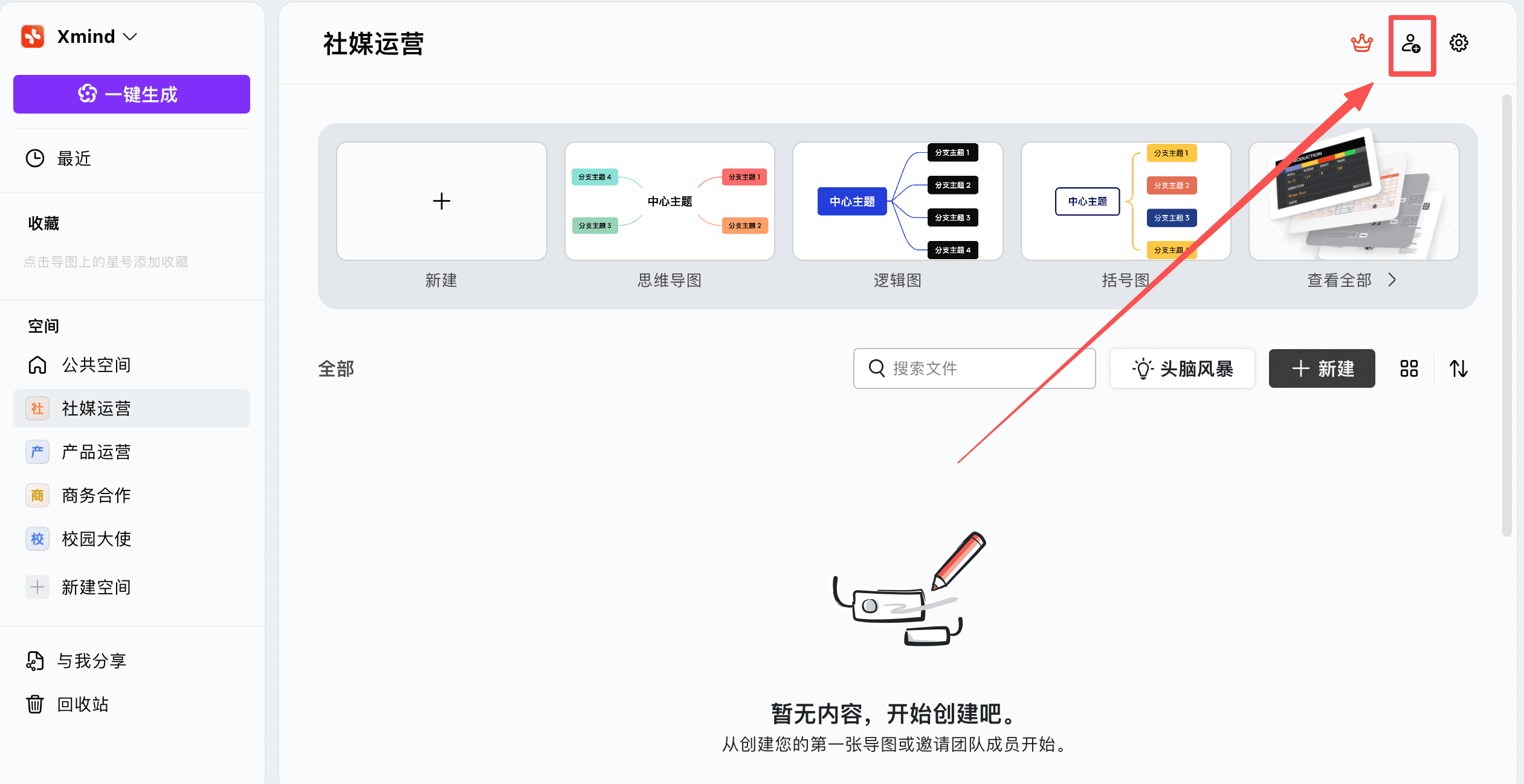
在已有空间中邀请成员

1、在目标空间中,点击右上角的“添加”图标

2、选择你想邀请的成员直接添加,或复制链接通过分享邀请

自定义成员角色

1、点击空间右上角的设置图标

2、选择「成员」设置管理角色和编辑权限
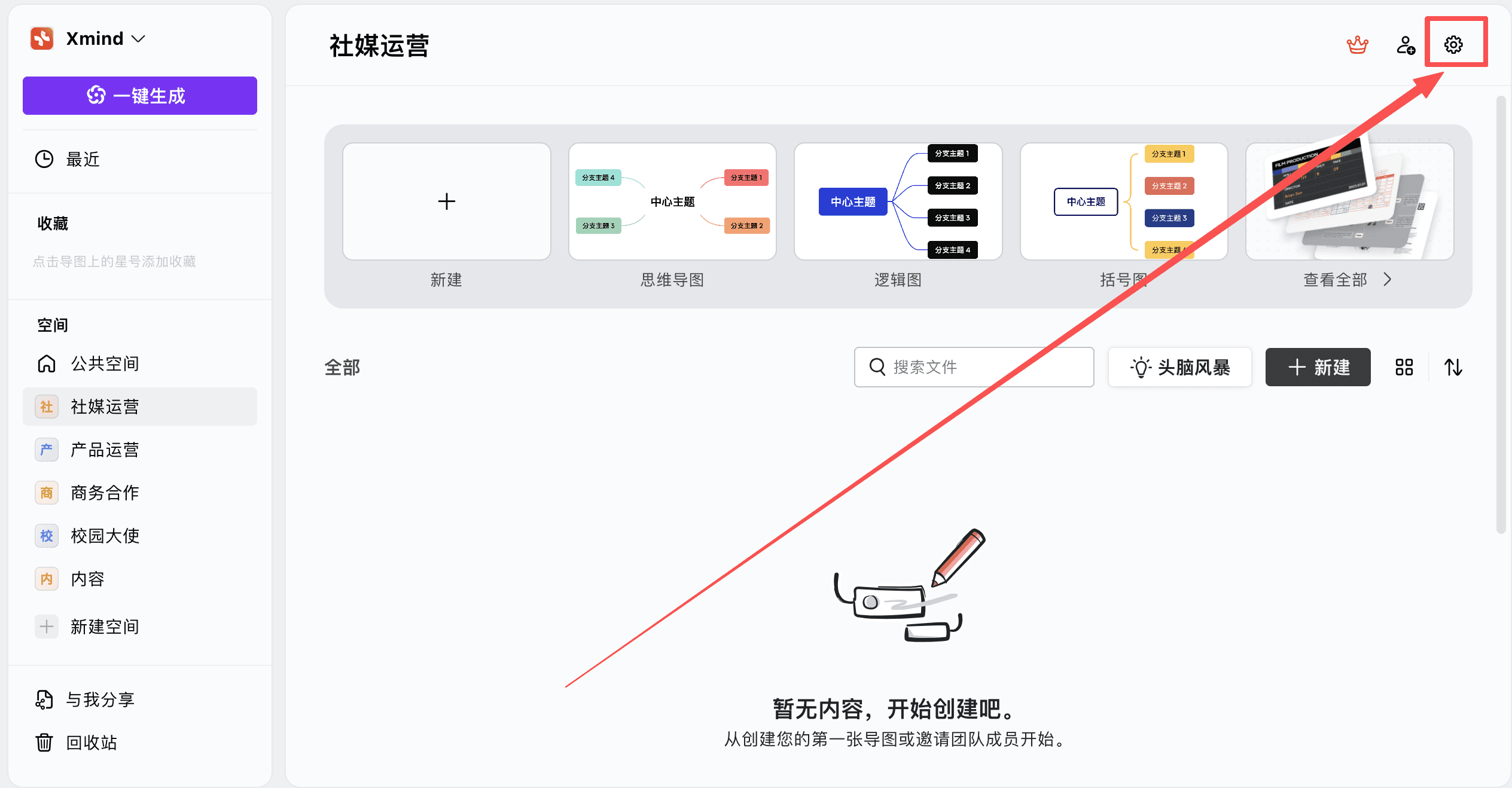

空间之间的切换

  • 要切换空间,请点击侧边栏中的空间名称


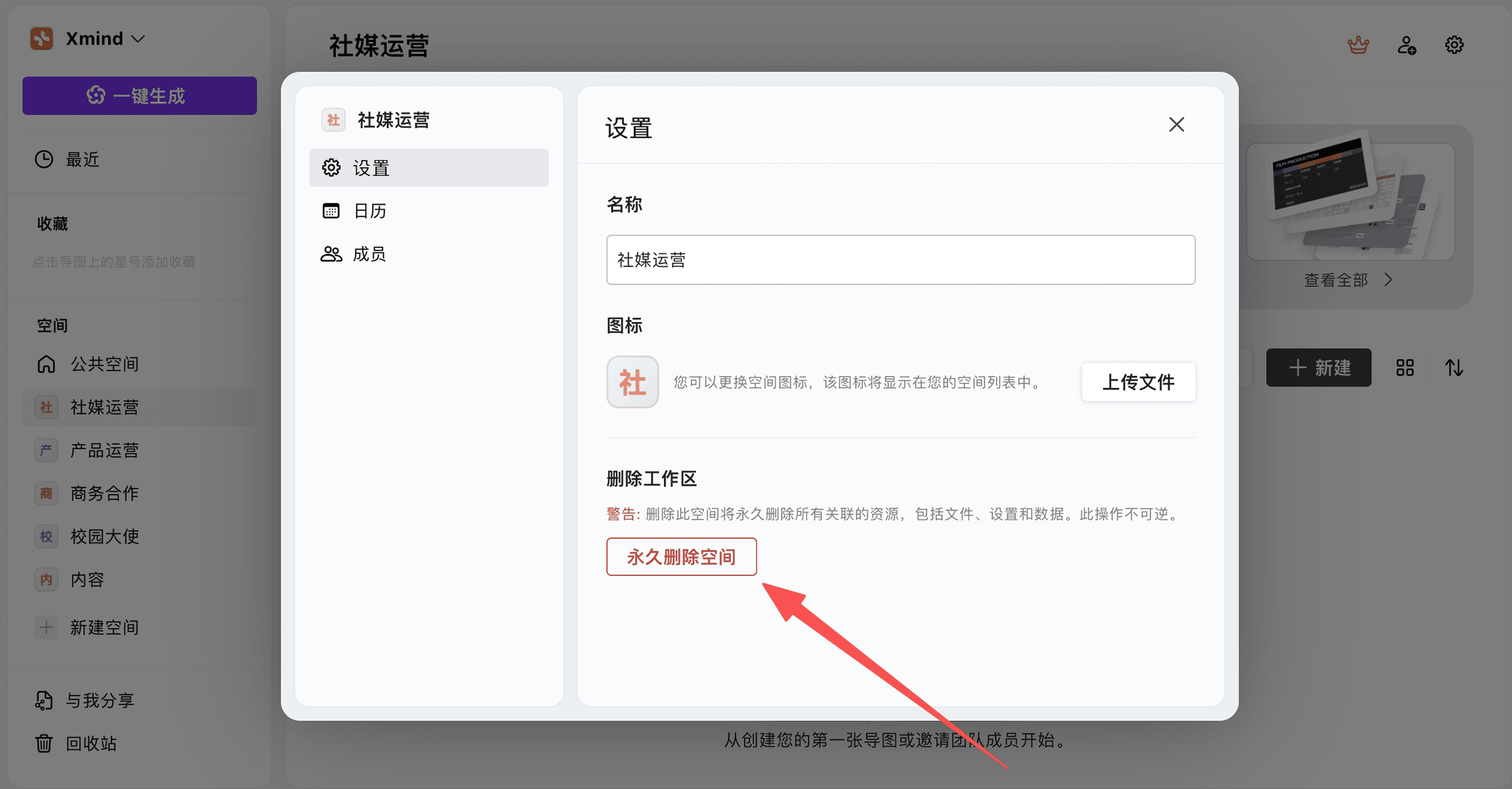
删除空间

1、点击右上角的设置图标

2、选择「通用」➡️ 「永久删除空间」