


在思维导图与大纲之间切换
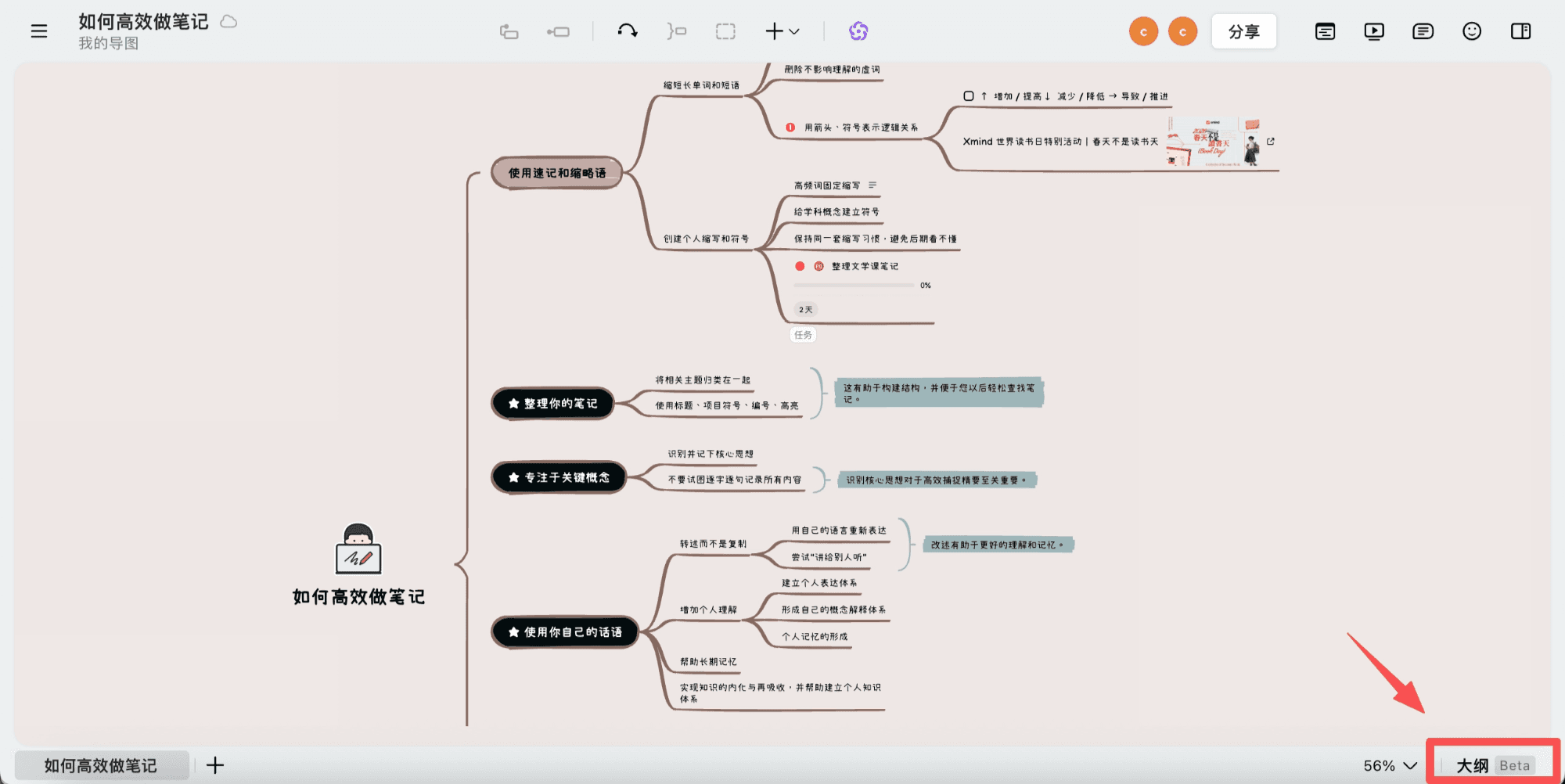
在线导图端:
画布栏右侧点击大纲,即可进入大纲模式。
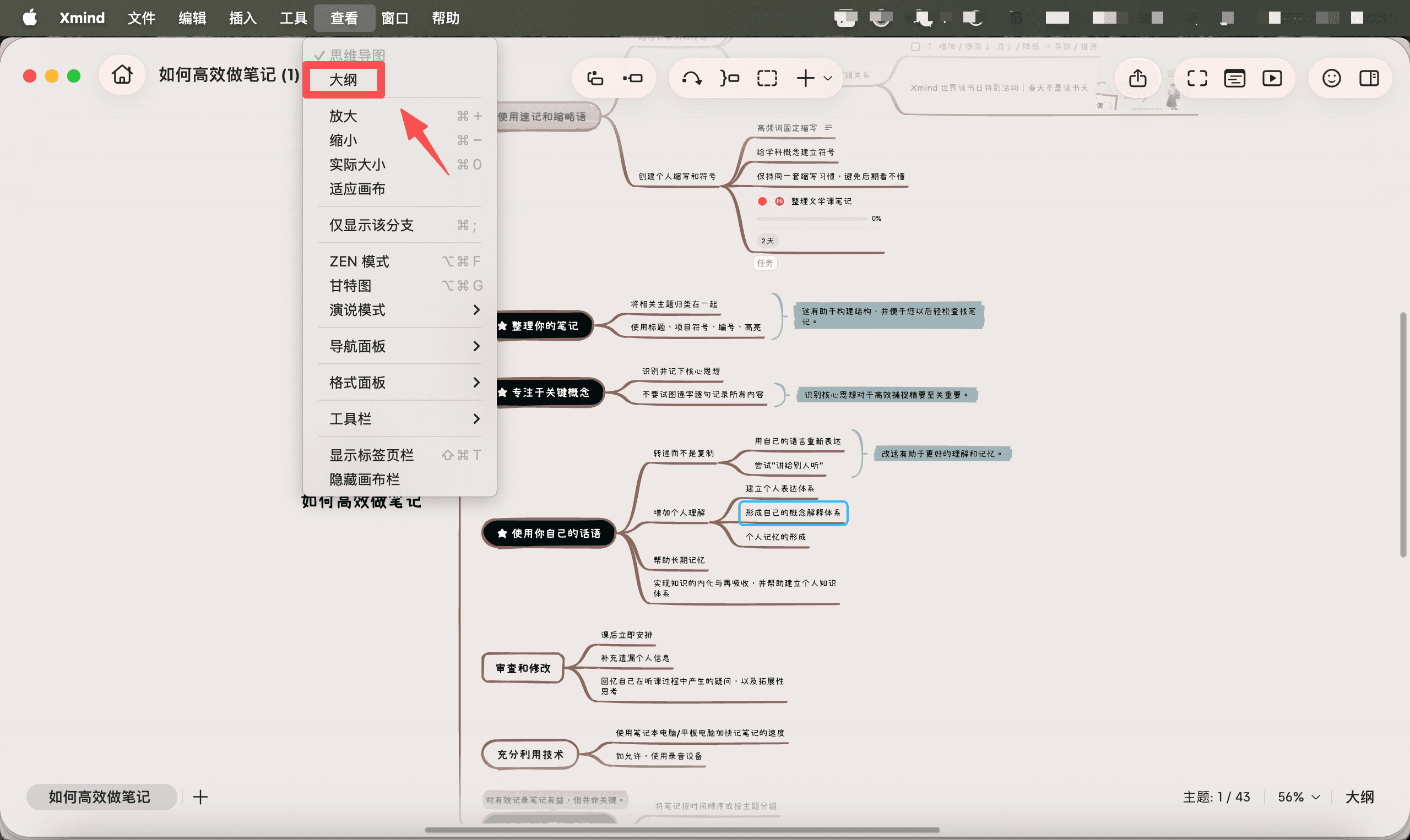
桌面端:(注意:目前桌面端“大纲模式”仅适用于本地文件。)
找到菜单栏的查看,点击大纲,即可进入大纲模式。
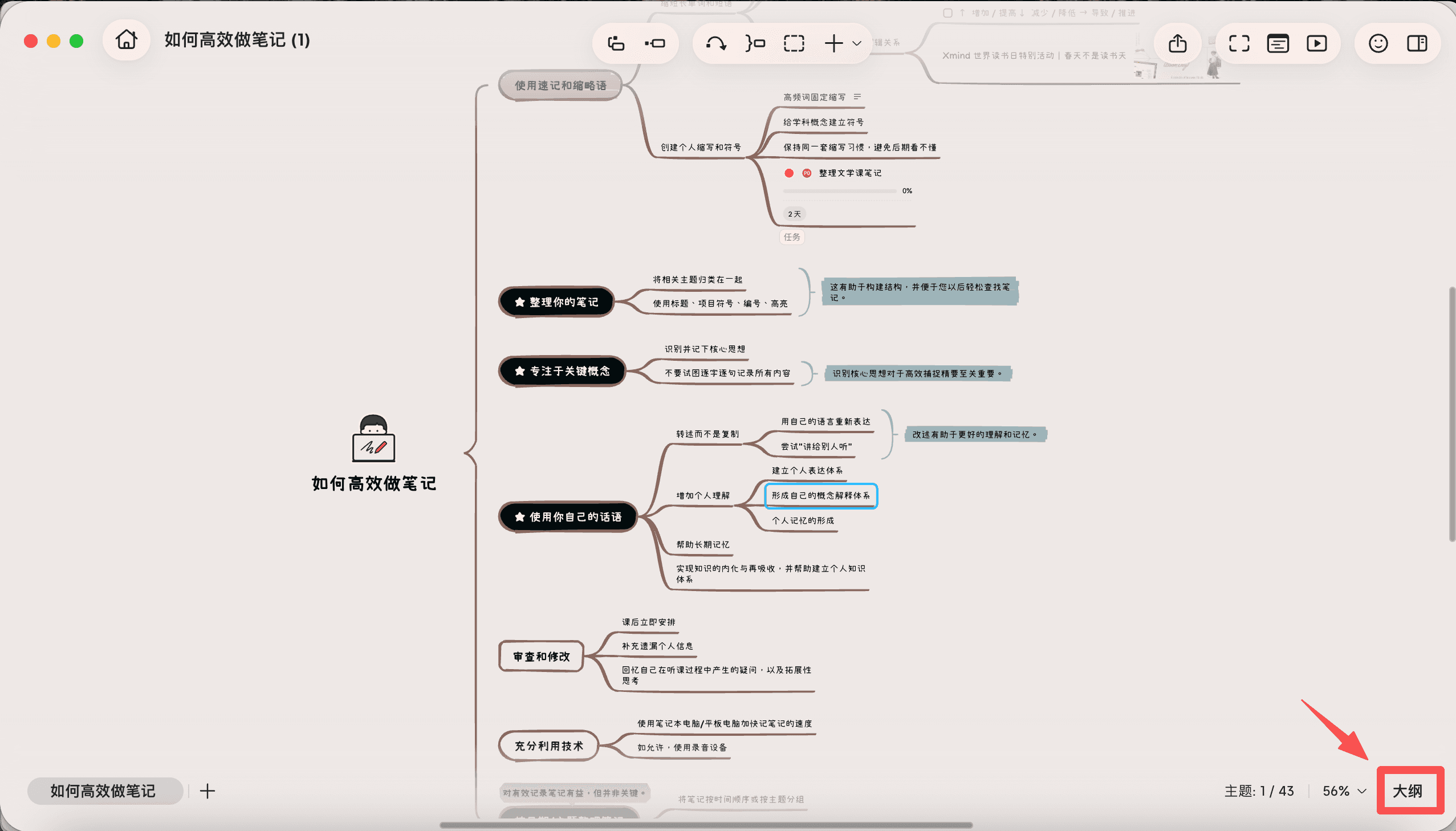
或是在画布栏右侧点击大纲,亦可进入大纲模式。
基础操作
缩进:点击工具栏的缩进可将主题调整至下一层级。
减少缩进:点击工具栏的减少缩进可将主题调整至上一层级。
利用快捷键快速输入
Enter可新建节点,Tab 可以缩进,Shift+Tab 可以减少缩进。
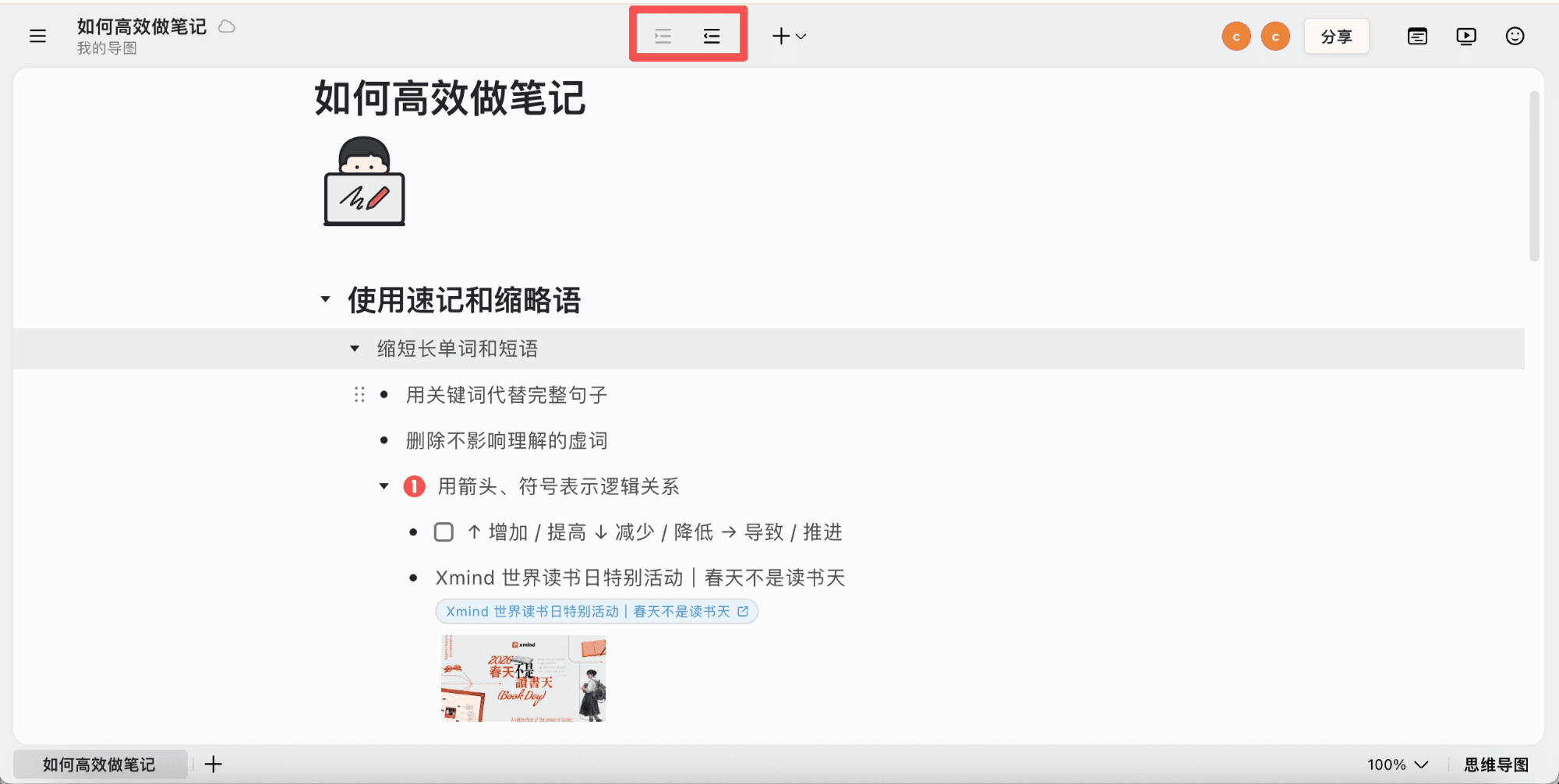
插入标签、链接、附件、语音备注、本地图片、方程:选中主题,点击工具栏的插入按钮选择相应的元素即可。

插入图标、贴纸:除了选择用工具栏插入贴纸、插画等元素,还可以在标记面板中可添加图标、贴纸。
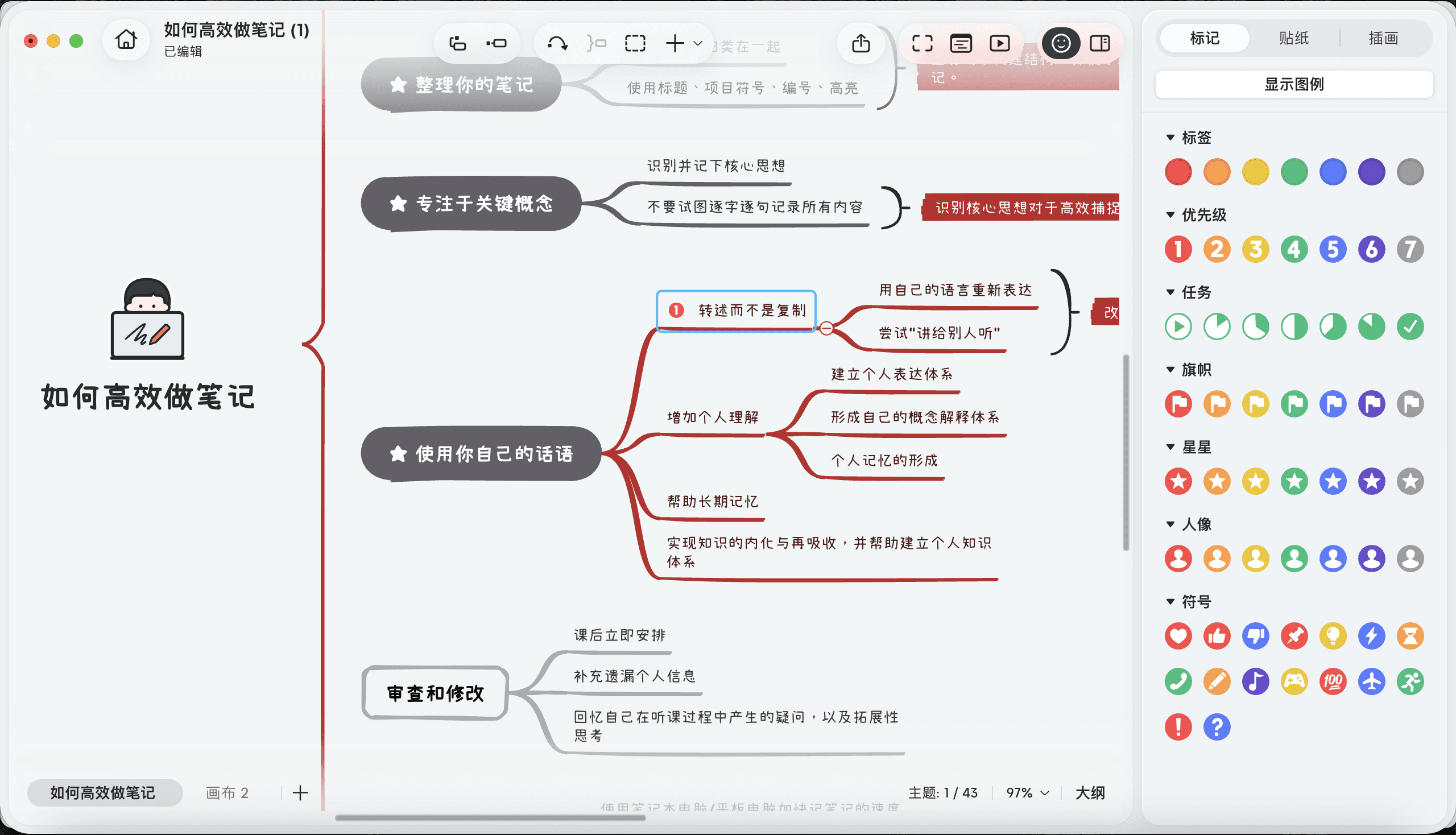
拖动调整内容层级:可以随意拖动内容模块以重组信息的层级结构。
进阶功能
缩放调整界面大小:可根据使用设备大小,除在右界面下角调整缩放比例外,可用快捷键进行整体的缩放调整。
⌨️ 快捷键
Windows:Ctrl + + / Ctrl + -
Mac:⌘ + + / ⌘ + -
仅显示该分支:大纲模式也支持仅显示该分支功能,在菜单栏中的查看可以唤出。
导出大纲:在菜单栏的文件中可以导出大纲。支持 PDF、Markdown、Excel、Word、OPML、TextBundle 的导出格式。
多人协作
在线导图端支持多人在同一份大纲/导图上实时协作编辑。
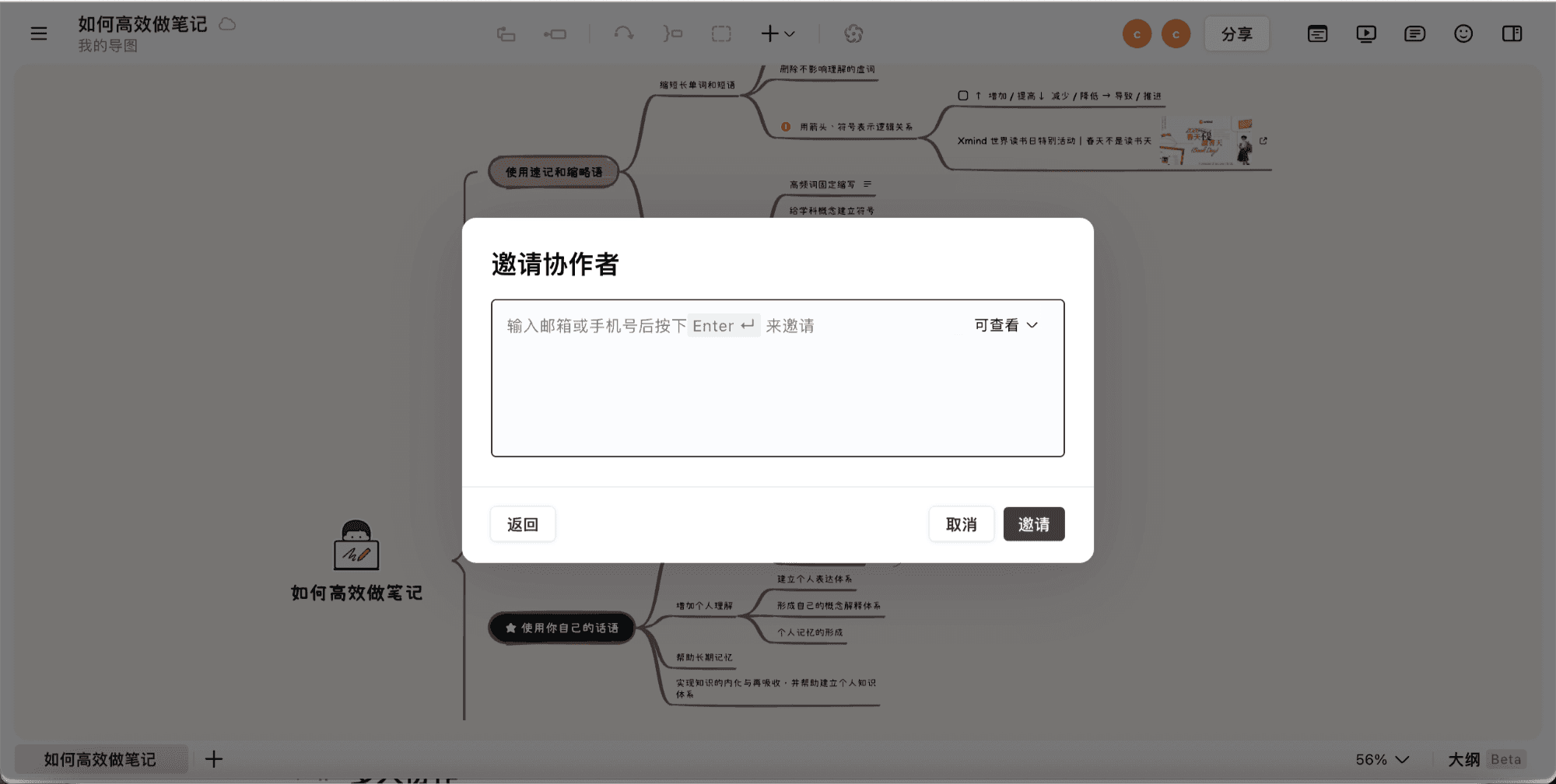
邀请他人共同协作:可通过邮箱或手机号可邀请协作者加入。每位协作者拥有独立颜色与用户名标识,在哪个节点编辑、光标在哪一行实时可见。每位用户的编辑状态在两种视图中都能看到。
自动锁定节点:当其中一位用户正在编辑某节点时,该节点对其他用户进入"锁定"状态,防止他人误操作,影响编辑。

