用户

手册

user-guide

用户

手册

A simple character with a round head and orange body holding an open book, focusing on reading.
user-guide
Gray downward arrow icon.

快速了解

Gray downward arrow icon.

基础操作

Gray downward arrow icon.

插入主题元素

Gray downward arrow icon.

调整导图样式

Gray downward arrow icon.

调整全局格式

Gray downward arrow icon.

查看与显示

Gray downward arrow icon.

文件

Gray downward arrow icon.

分享

Gray downward arrow icon.

协作与同步

Gray downward arrow icon.

AI 功能

Gray downward arrow icon.

团队功能

Gray downward arrow icon.

更多模式与功能

Gray downward arrow icon.

常见问题解答

/

/

手绘转导图

手绘转导图

手绘转导图可以将 iPad 和 iPhone 上的手写文字和涂鸦转换为结构化、可编辑的思维导图。

1. 打开手绘画布

打开 iPad 上的 Xmind,在首页向下滑动,找到「手绘」卡片。点击卡片,进入手绘画布。
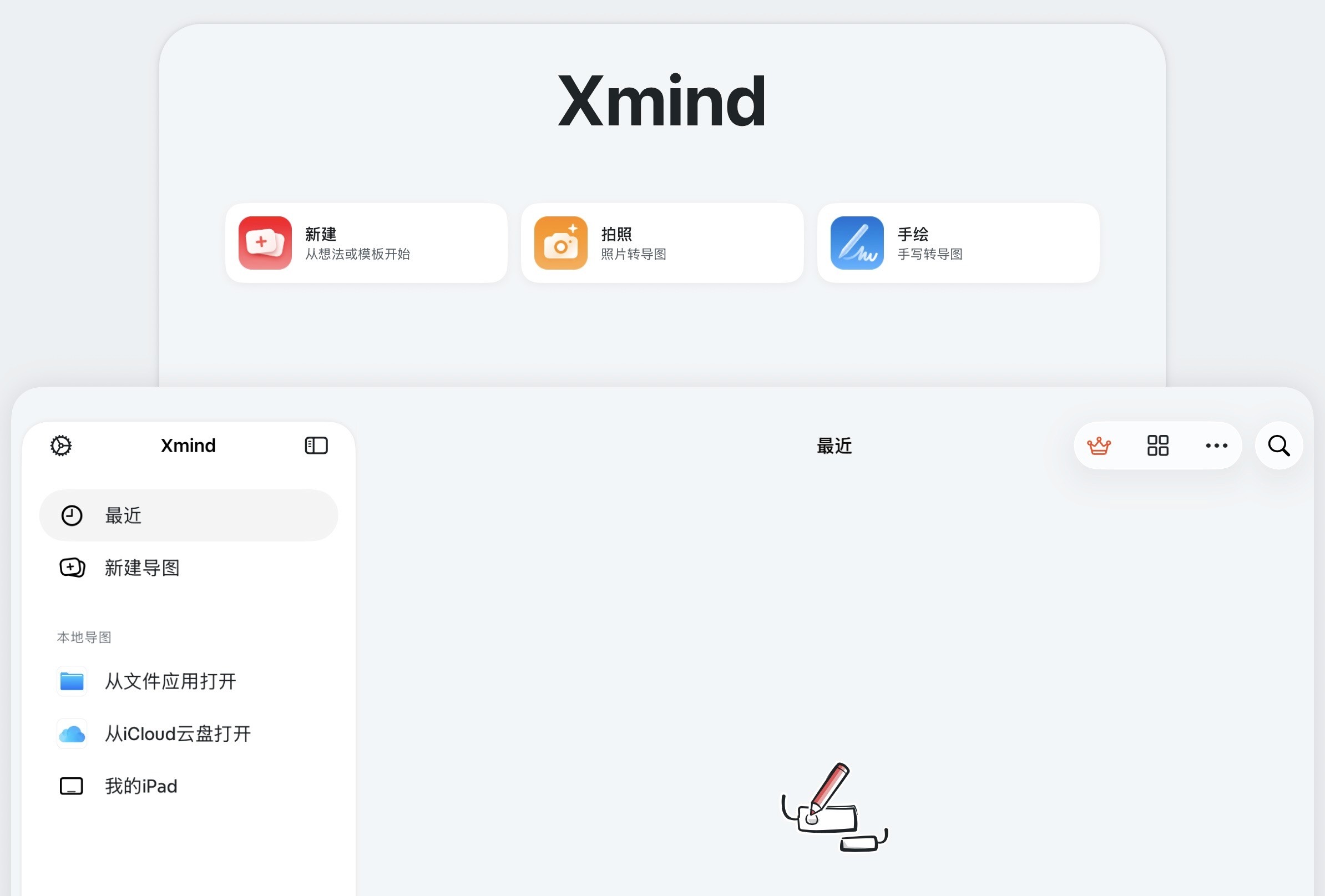
Xmind 首页的「手绘」入口


2. 选择保存位置

手绘内容默认保存在 iPad 本地。

你也可以将保存位置切换到云端,以便在其他设备上访问,或与团队成员协作。
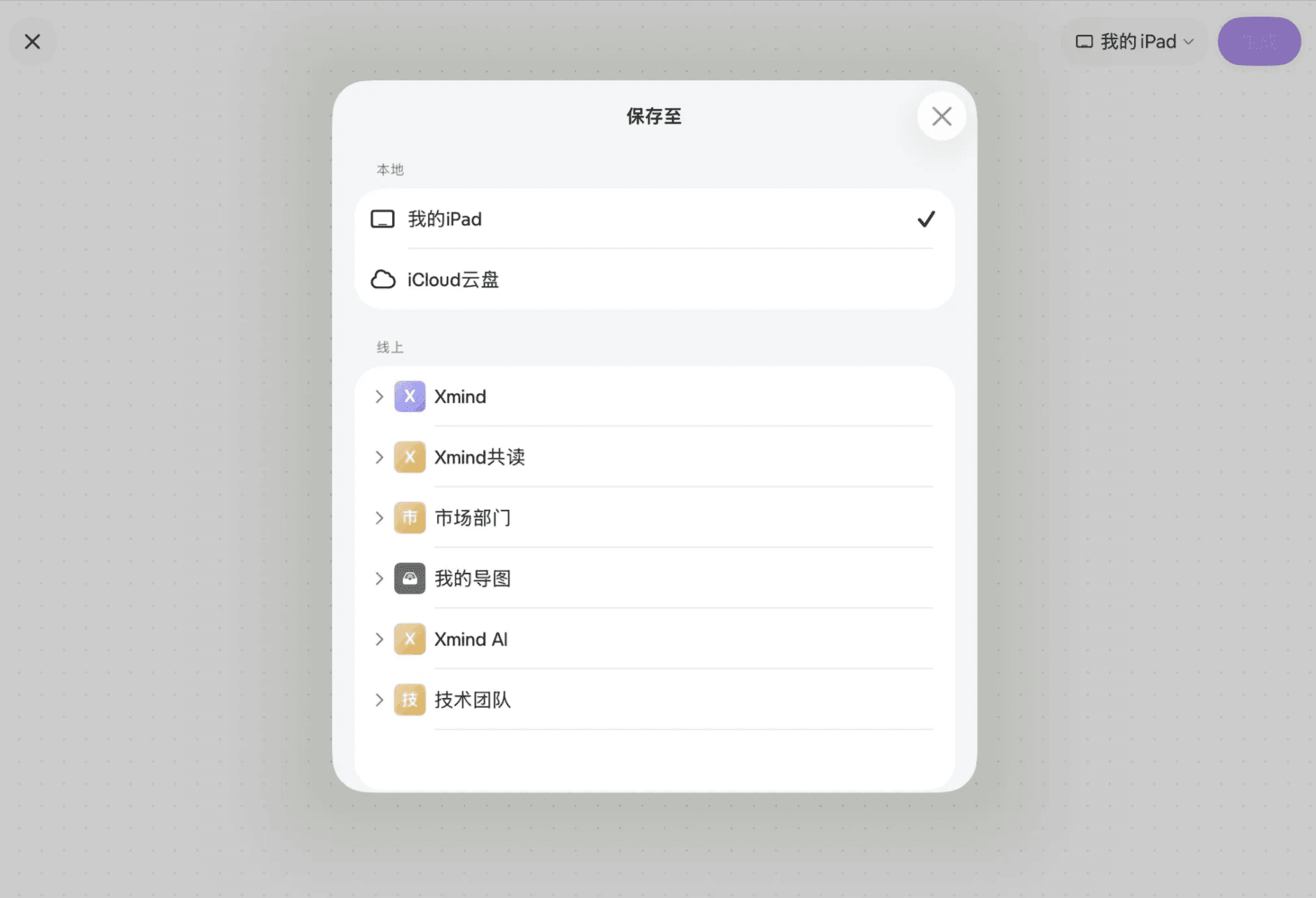
选择保存至本地或线上

3. 绘制或书写内容

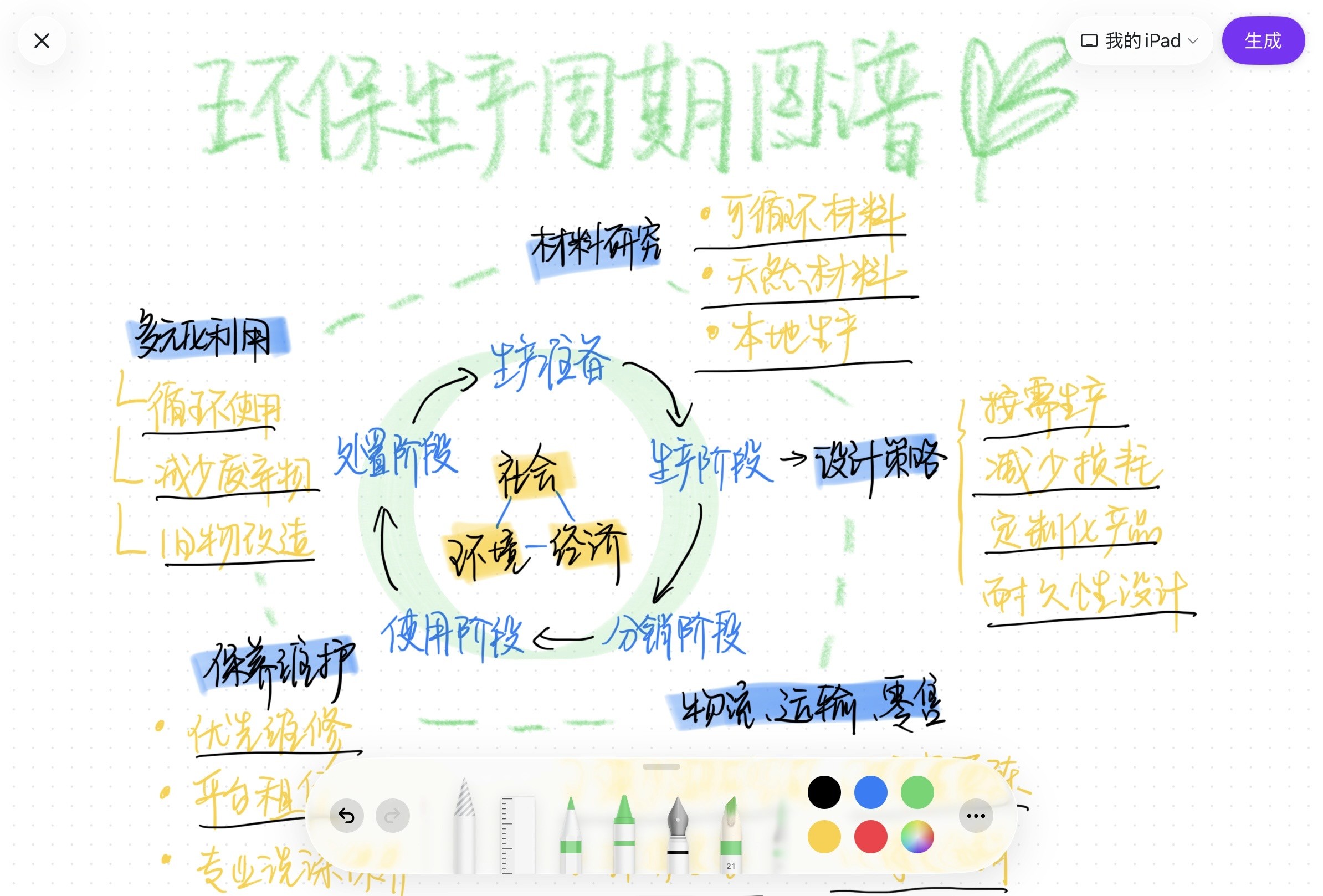
使用 Apple Pencil 或者直接用手在画布中记录内容。你可以:

  • 书写文字

  • 绘制图形或连线

  • 标记重点

  • 擦除内容

  • 调整已有笔迹

使用 Apple Pencil 绘制内容

4.生成思维导图

完成手绘后,点击「生成」。

Xmind AI 会分析画布中的手写内容和结构,并将其转换为思维导图。转换过程需要消耗 AI 点数,请保持网络连接。
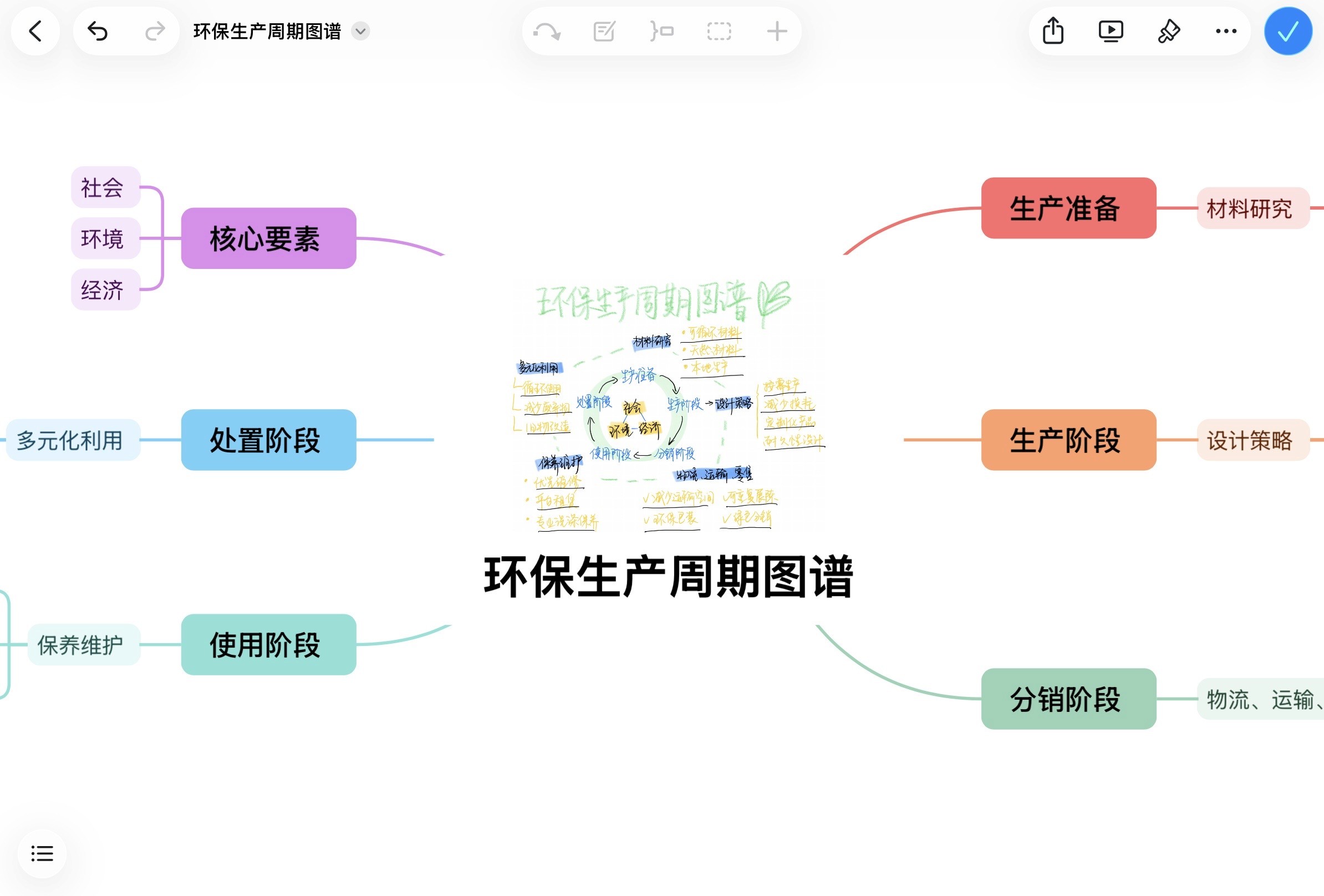
生成思维导图

5. 编辑生成的导图

转换完成后,原始手绘内容会以图片形式保留在中心主题中,识别出的内容则会生成可编辑的主题和分支。

你可以像编辑普通思维导图一样,继续调整文字、层级、布局和样式,也可以保存或分享导图。
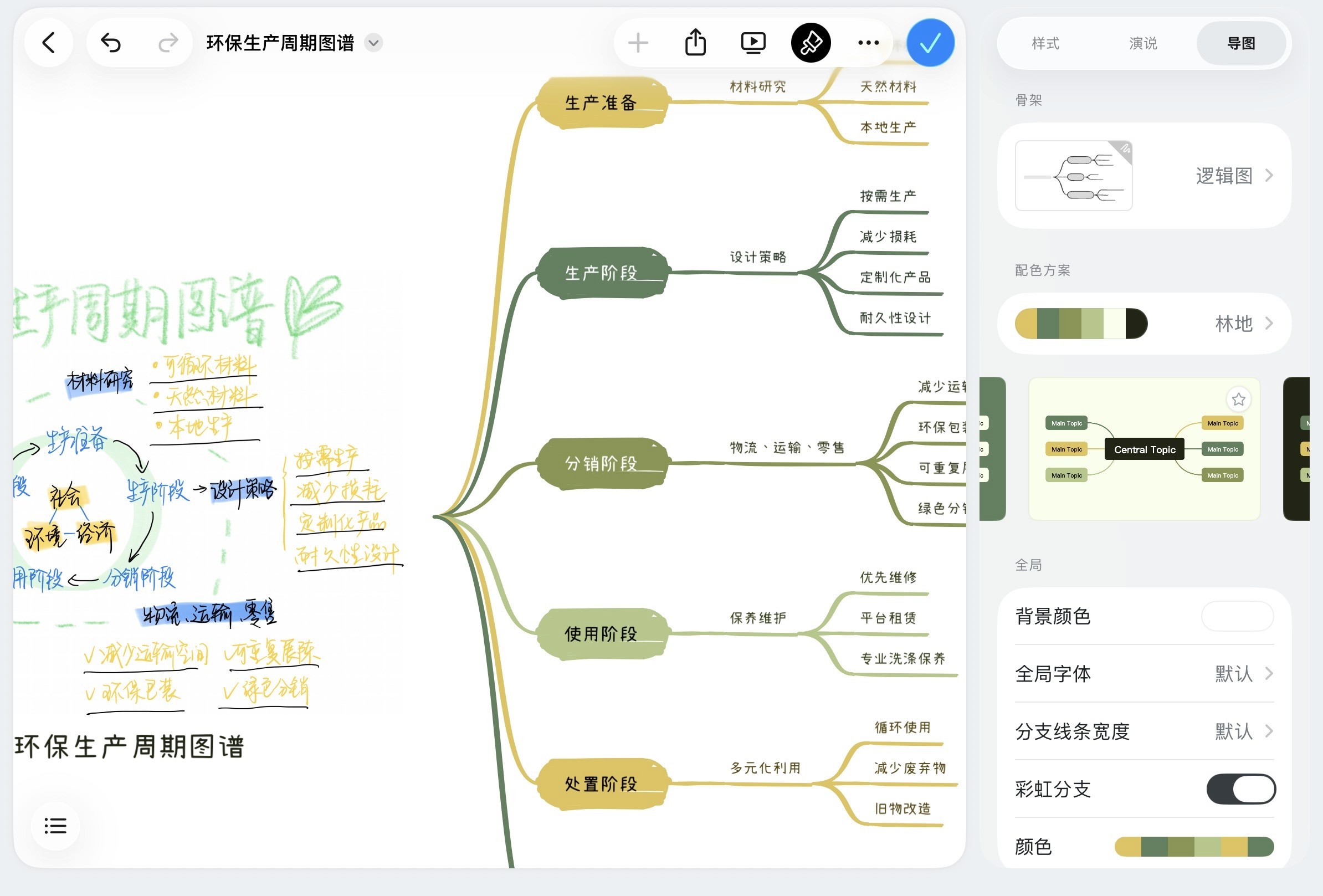
按需编辑生成后的导图