用户

手册

user-guide

用户

手册

A simple character with a round head and orange body holding an open book, focusing on reading.
user-guide
user-guide
Gray downward arrow icon.

快速了解

Gray downward arrow icon.

基础操作

Gray downward arrow icon.

插入主题元素

Gray downward arrow icon.

调整导图样式

Gray downward arrow icon.

调整全局格式

Gray downward arrow icon.

查看与显示

Gray downward arrow icon.

文件

Gray downward arrow icon.

分享

Gray downward arrow icon.

协作与同步

Gray downward arrow icon.

AI 功能

Gray downward arrow icon.

更多模式与功能

Gray downward arrow icon.

常见问题解答

/

/

AI工作分解

AI工作分解

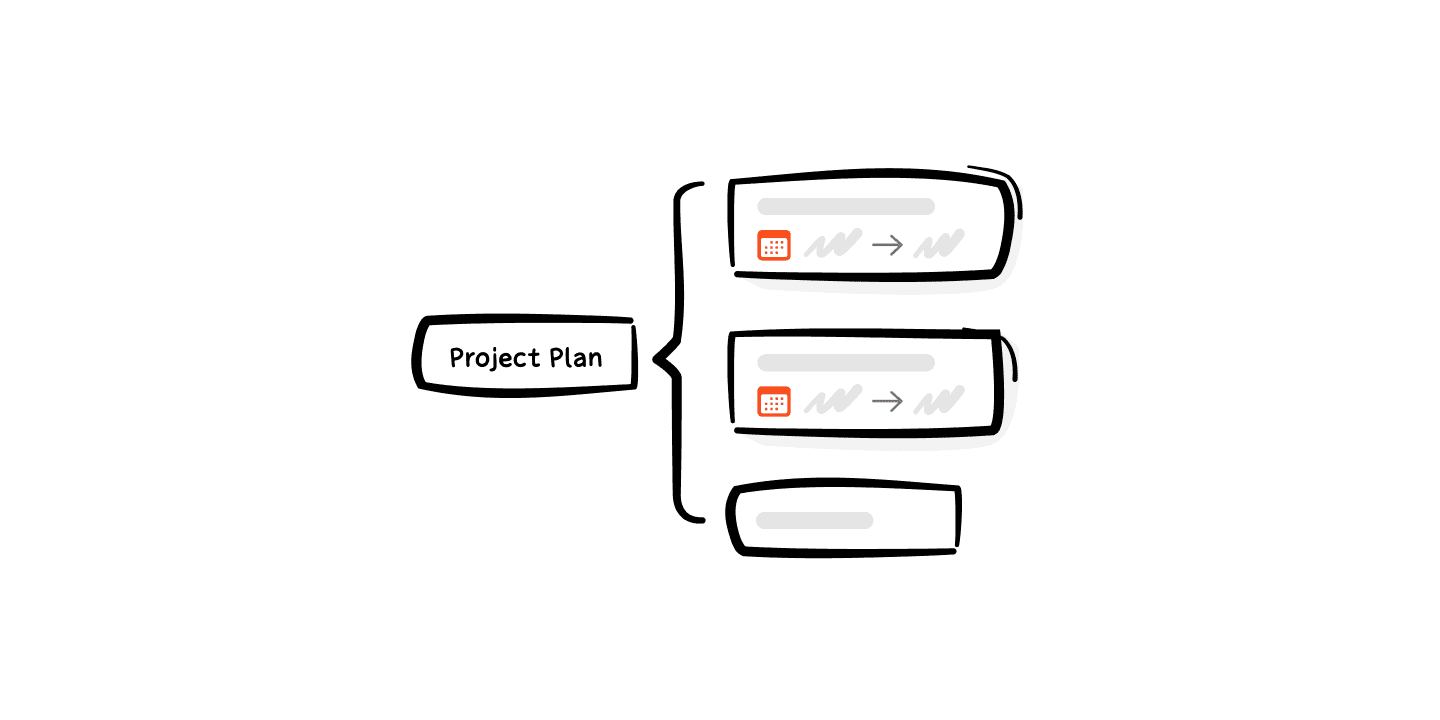
AI 会根据你提供的内容自动生成次任务、优先级和时间线,让整个项目结构清晰可控,轻量高效启动。

电脑端操作

情景一:从新建导图开始使用AI工作分解

  1. 打开Xmind主页,点击左侧面板的**「一键生成」**按钮

  2. 输入项目文字描述、目标和截止日期,或者上传相关资料(支持PDF、Word、PPT、TXT、Markdown 及网页链接)

  3. 选中 「工作分解」,点击「生成」,等待几秒,你的项目就会被拆解成带有任务功能的思维导图。

AI工作分解界面展示

情景二:在已有导图内新增AI工作分解

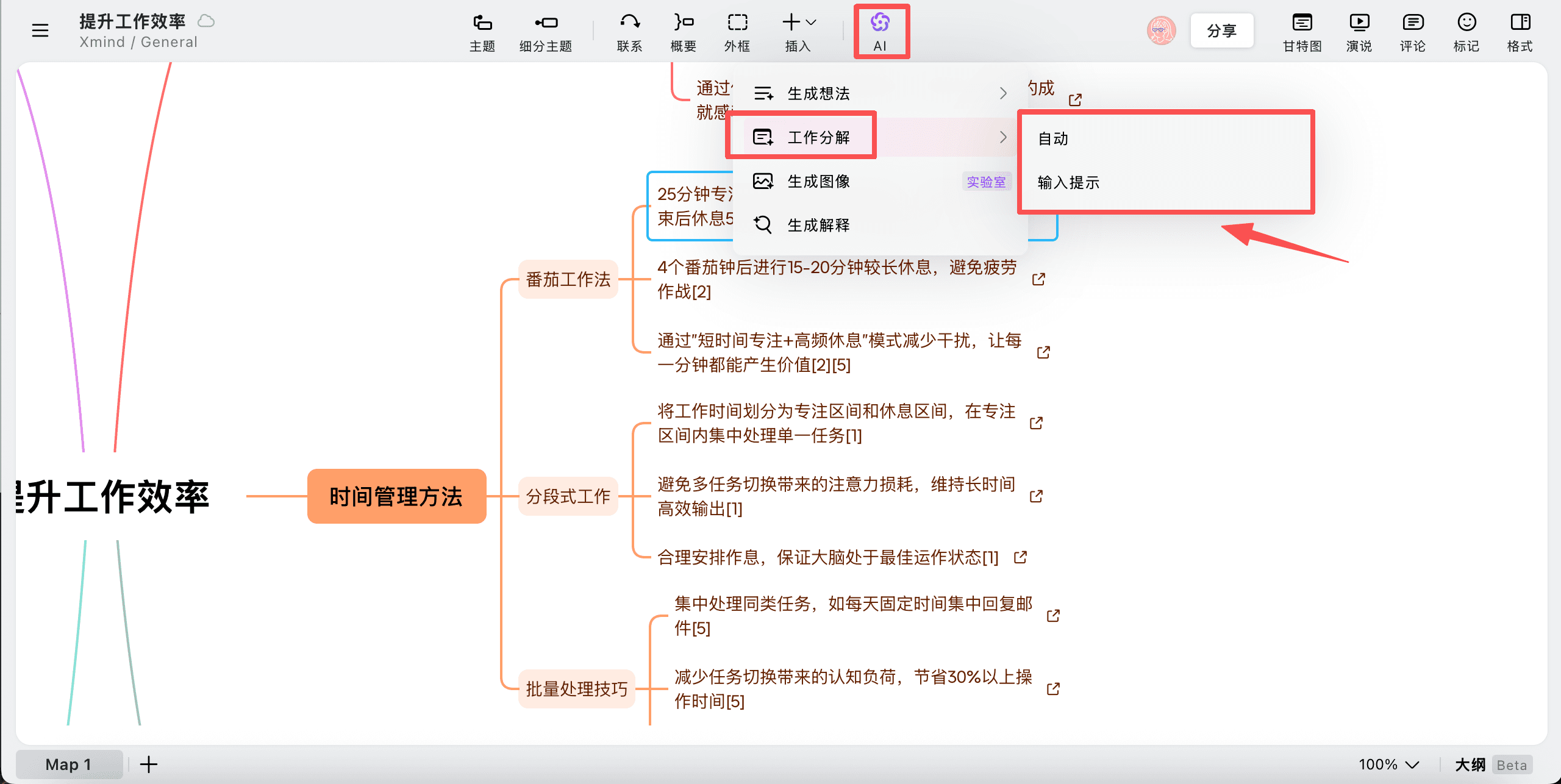
在一张打开的思维导图画布内,可以右键点击任意主题,找到「AI工作分解」 功能 你可以选择以下两种模式:

  1. 自动生成:智能拆解出多个子任务

  2. 输入提示生成:输入你的个性化需求或限定,AI将按照需求拆解出子任务。