用户

手册

user-guide

用户

手册

A simple character with a round head and orange body holding an open book, focusing on reading.
user-guide
Gray downward arrow icon.

快速了解

Gray downward arrow icon.

基础操作

Gray downward arrow icon.

插入主题元素

Gray downward arrow icon.

调整导图样式

Gray downward arrow icon.

调整全局格式

Gray downward arrow icon.

查看与显示

Gray downward arrow icon.

文件

Gray downward arrow icon.

分享

Gray downward arrow icon.

协作与同步

Gray downward arrow icon.

AI 功能

Gray downward arrow icon.

团队功能

Gray downward arrow icon.

更多模式与功能

Gray downward arrow icon.

常见问题解答

/

/

生成图像

生成图像

生成图像方式

在 Xmind 在线导图中,你可以通过以下两种方式生成图像:

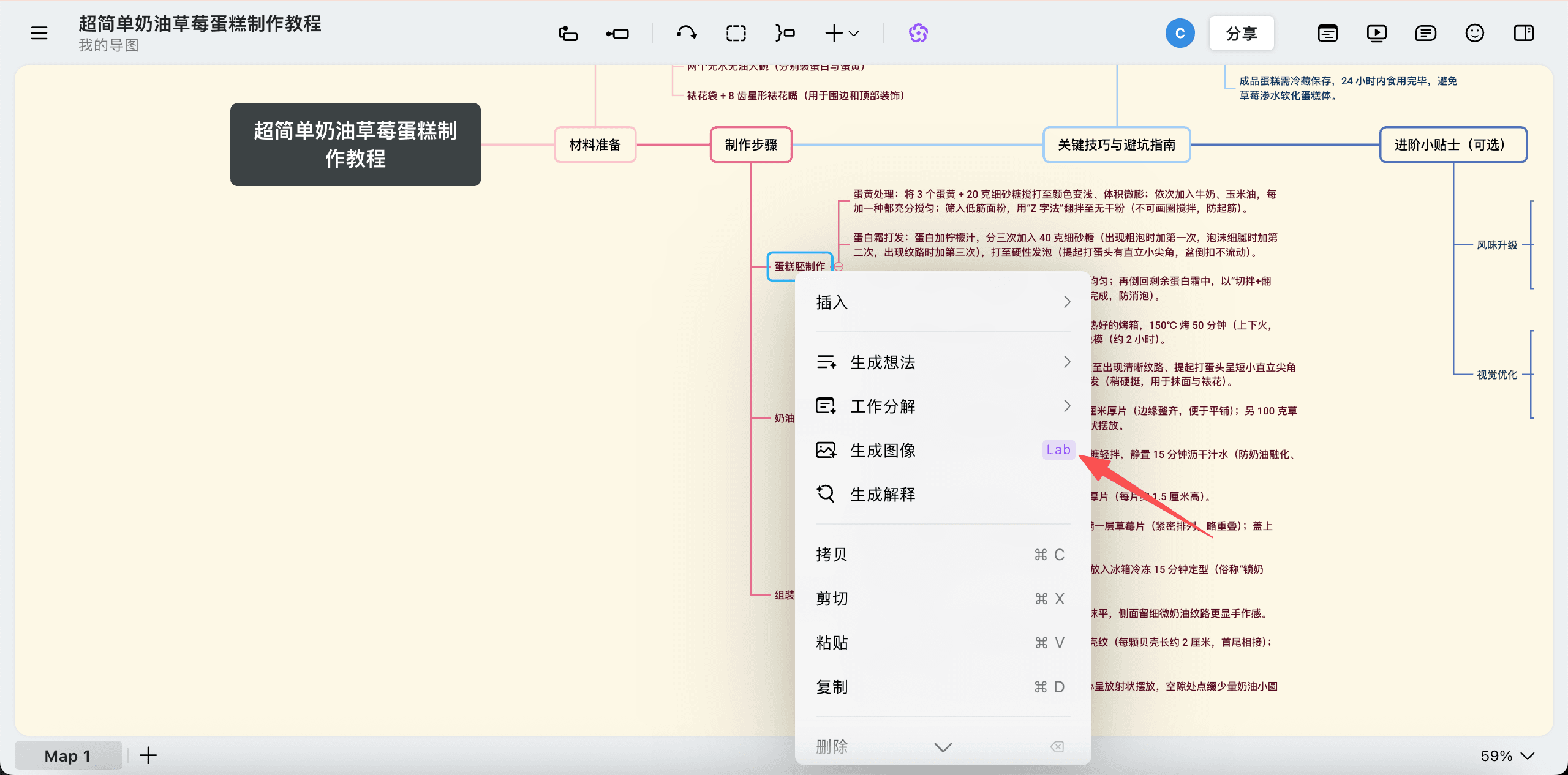
方式一:通过右键菜单

  1. 右键点击目标主题。

  2. 在菜单中选择“生成图像”。

通过点击右键菜单打开“生成图像”功能图示

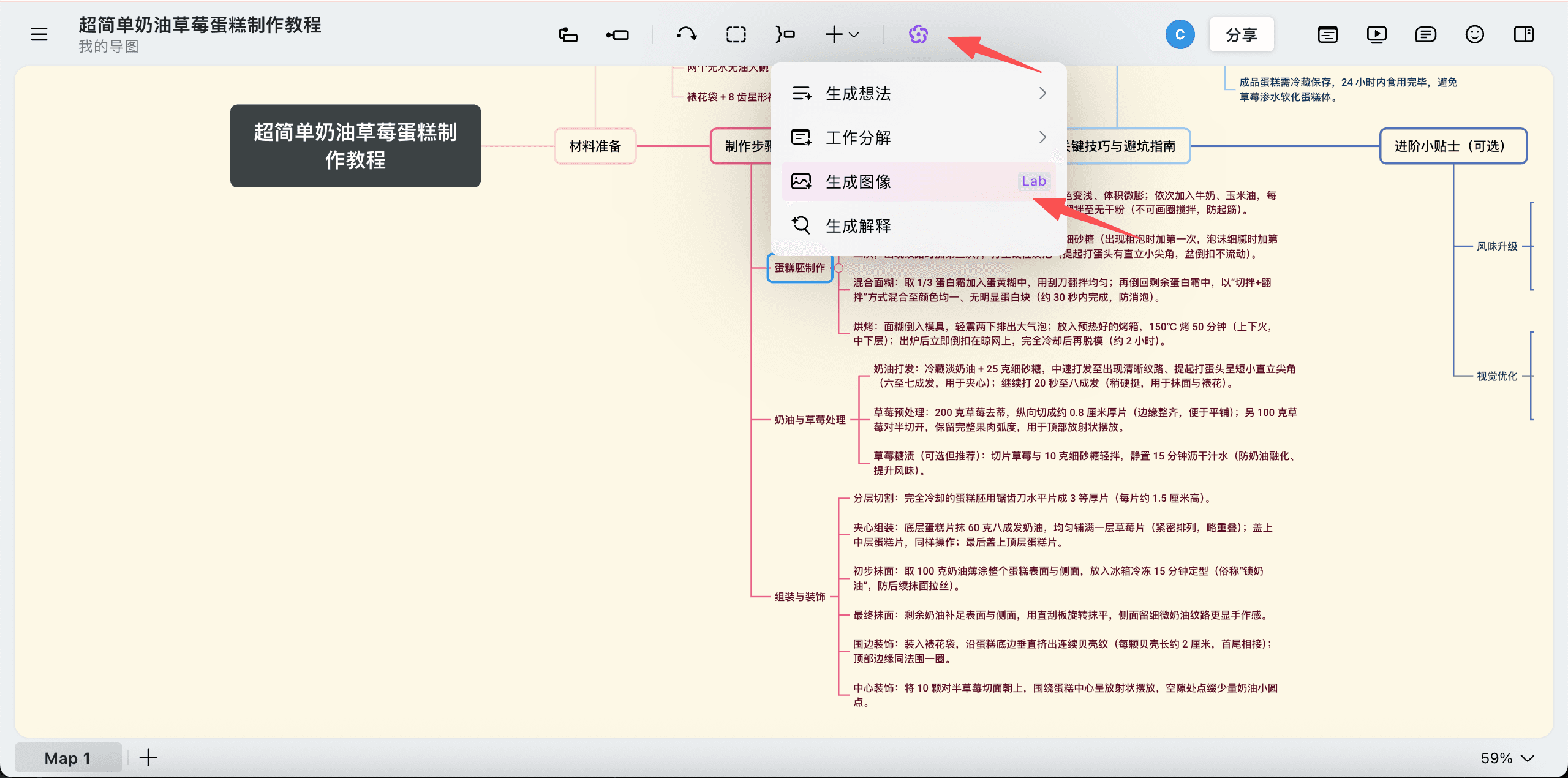
方式二:通过顶部工具栏

  1. 选中目标主题。

  2. 点击顶部工具栏的 AI 按钮。

  3. 在下拉选项中选择”生成图像”。

通过顶部工具栏打开“生成图像”功能图示

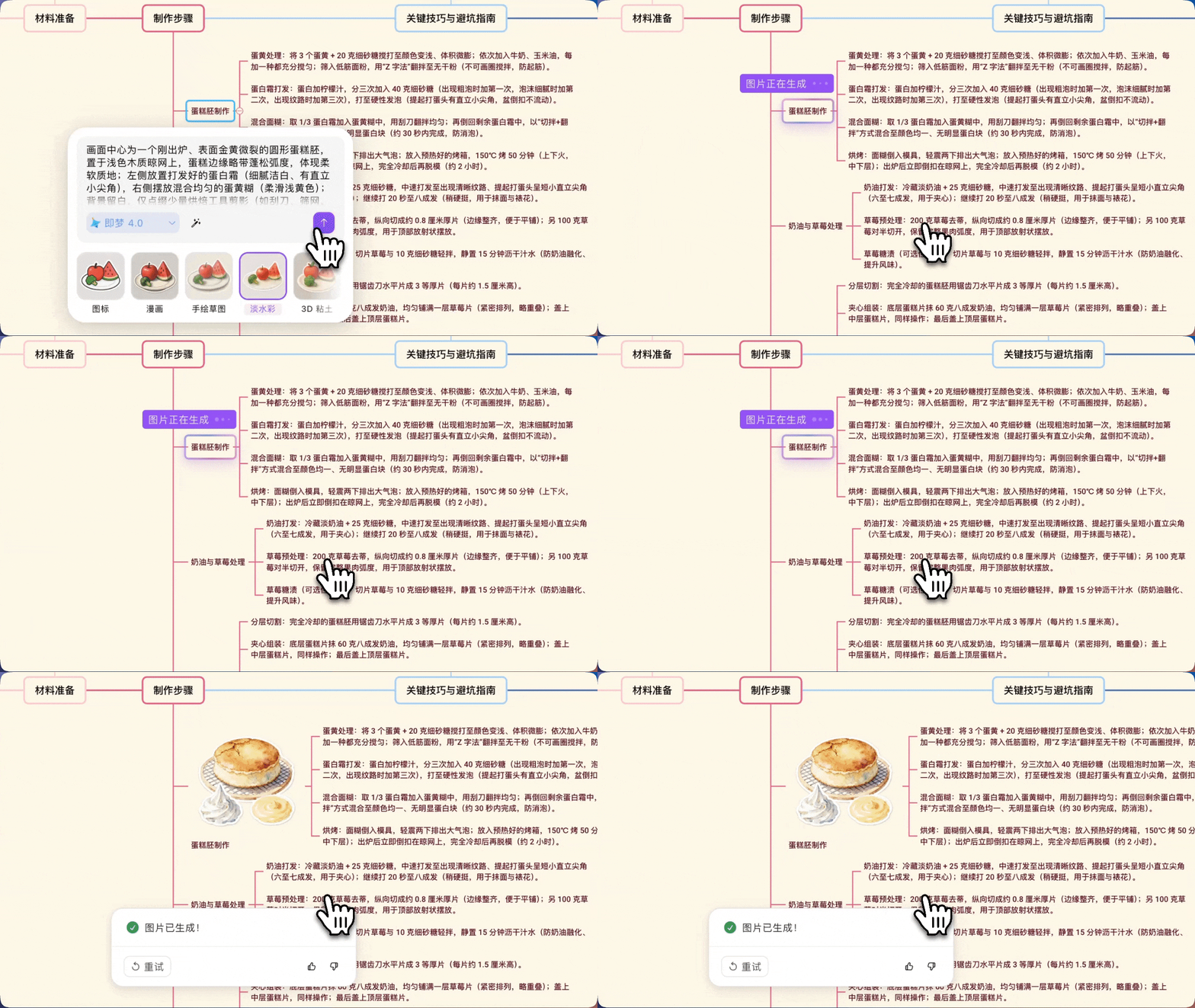
开启生成图像功能后,Xmind AI 会根据所选主题及其上下文内容,自动创作绘图提示词,并为你推荐与当前导图风格最契合的视觉效果。
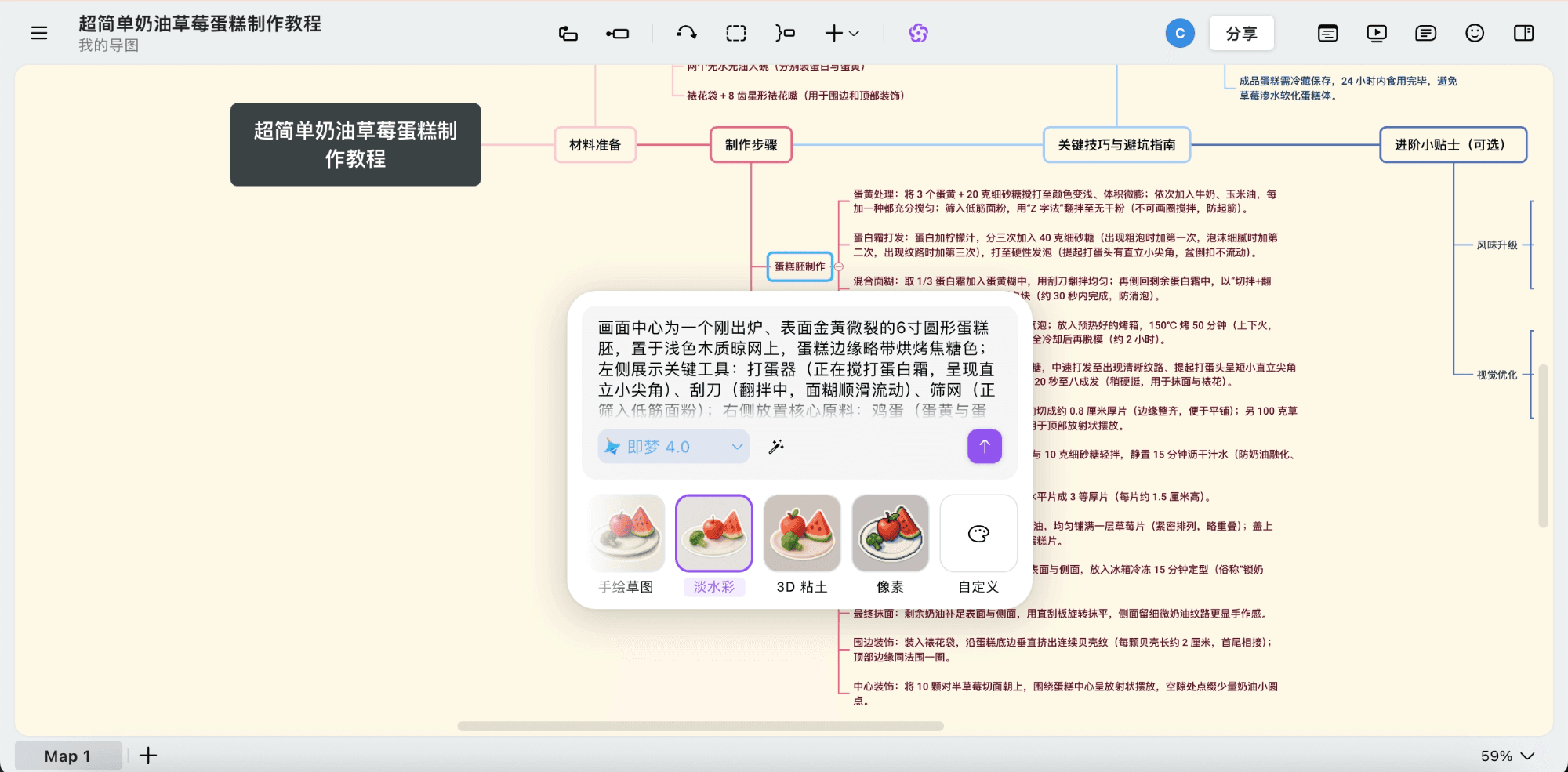
自动生成绘图提示词图示

自定义图像设置

在正式生成前,你可以根据预期效果对图像进行个性化配置:

编辑提示词:直接在输入框内修改提示词内容。

切换模型:根据需要选择不同的图像生成模型。

灵感触发:点击“启发提示词 ”重新生成提示词。

预设风格:选择不同的艺术风格。

你也可以通过“自定义风格”,直接在提示词中描述你想要的视觉风格,实现更精准的表达。
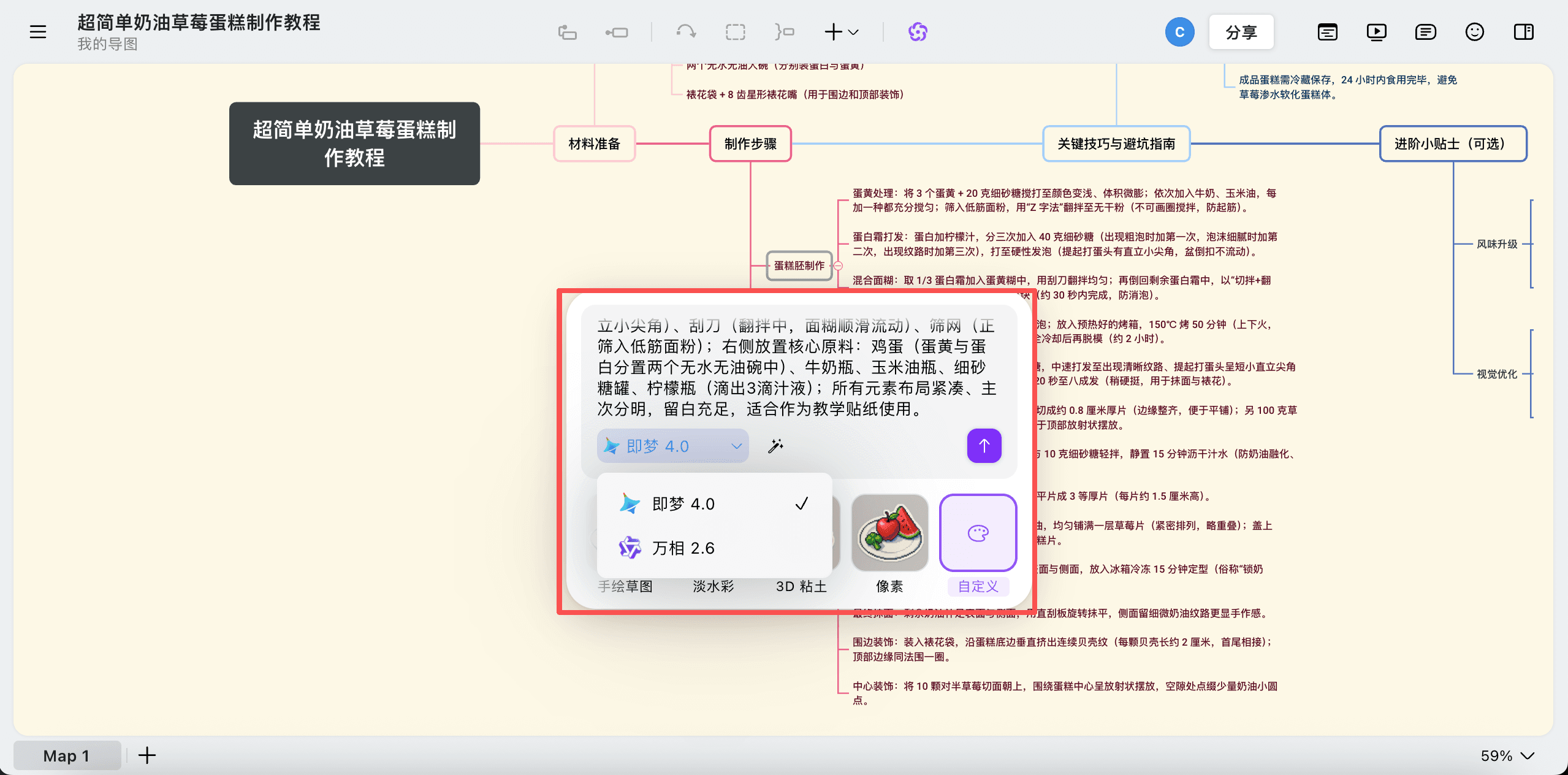
自定义绘图提示词图示

生成与插入

点击按钮开始生成。图像准备就绪后,将自动插入到所选的主题中。

生成图像过程图示

如果你选择了预设风格,Xmind 会自动执行背景移除,生成的贴纸将与思维导图背景无缝融合。

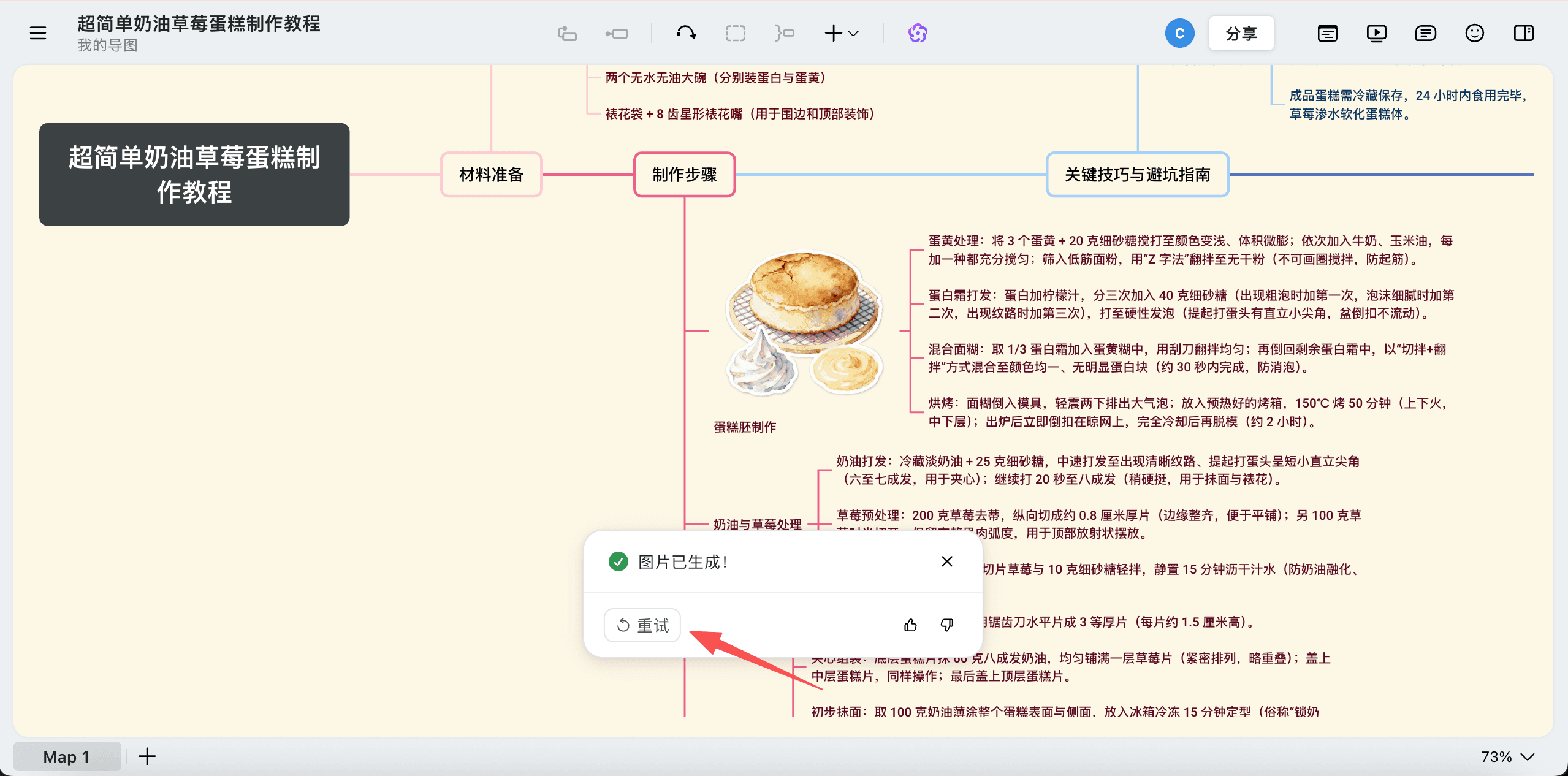
重新生成图像

如果对当前生成的结果不够满意:

  1. 点击“重试 ”。

  2. 调整提示词、模型或风格。

  3. 再次点击生成。

重新生成图像图示